
Playing Minecraft on Linux can be a great experience, especially for users who prefer an open-source and customizable operating system. However, getting the game running smoothly may require a bit more setup than on Windows.
If you are exploring Minecraft PlugBoxLinux, this guide walks you through the key steps, from understanding the platform to installing Minecraft, improving performance, and troubleshooting common problems.
What Is PlugBoxLinux?
PlugBoxLinux is a Linux-based environment designed for users who want flexibility and control over their system. Like other Linux distributions, it provides access to software through package managers and community-supported repositories.
For Minecraft players, a Linux environment can offer useful customization options. You can control Java versions, system resources, graphics settings, mods, and other components that affect gameplay.
Can You Play Minecraft on PlugBoxLinux?
Yes, you can play Minecraft on a Linux system when the required software and hardware are properly configured. Minecraft: Java Edition is particularly suitable for Linux because it runs through Java.
Before installing the game, make sure your computer has enough RAM, storage, and graphics capability. A stable internet connection is also useful for downloading the launcher, game files, updates, and optional content.
Minecraft System Requirements for PlugBoxLinux
Minecraft’s performance depends heavily on your hardware and the settings you use. Basic gameplay generally requires much fewer resources than heavily modded gameplay or shader packs.
Before starting your Minecraft PlugBoxLinux setup, consider the following:
- A modern 64-bit Linux system
- Sufficient RAM for Minecraft and other running applications
- Adequate free storage
- Compatible graphics drivers
- A stable internet connection
- A valid Minecraft account
If you plan to use large modpacks or shaders, additional RAM and a stronger GPU can make a noticeable difference.
What You Need Before Installing Minecraft
A little preparation can prevent many installation and performance problems.
First, update your Linux system and make sure your graphics drivers are working correctly. You should also check which Java version the Minecraft version you intend to play requires.
It is a good idea to keep your operating system and important packages updated. At the same time, avoid installing random packages or launchers from untrusted sources.
How to Install Minecraft on PlugBoxLinux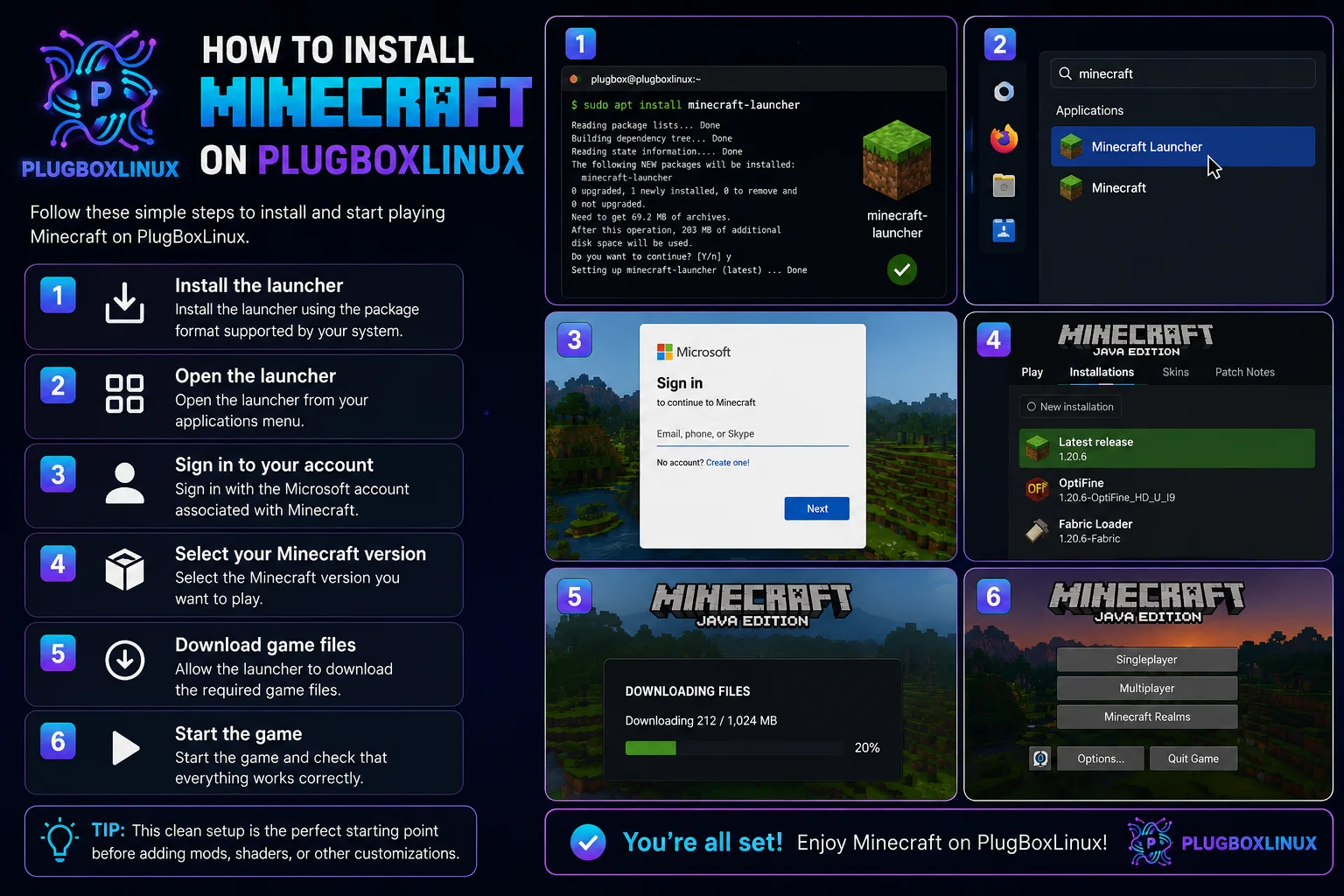
The installation process can vary depending on your Linux configuration. In general, get the official Minecraft launcher or use a reputable launcher that supports Linux.
After downloading the appropriate launcher:
- Install the launcher using the package format supported by your system.
- Open the launcher from your applications menu.
- Sign in with the Microsoft account associated with Minecraft.
- Select the Minecraft version you want to play.
- Allow the launcher to download the required game files.
- Start the game and check that everything works correctly.
This approach provides a clean starting point before adding mods, shaders, or other customizations.
Setting Up the Minecraft Launcher on Linux
Once Minecraft is installed, take a few minutes to configure the launcher.
Check the installation directory and make sure the launcher has permission to access the required files. You can also review the Java runtime and memory allocation settings if your launcher provides those options.
For a standard Minecraft installation, avoid assigning nearly all of your system RAM to the game. Your operating system and background applications still need memory to function properly.
How to Log In and Configure Your Minecraft Account
Minecraft requires an appropriate account and license for the edition you want to play. Sign in through the launcher using the credentials associated with your Microsoft account.
After signing in, select the desired Minecraft version and review the available settings. If you are testing a new installation, start with the default configuration and make changes gradually.
How to Install Minecraft Mods on PlugBoxLinux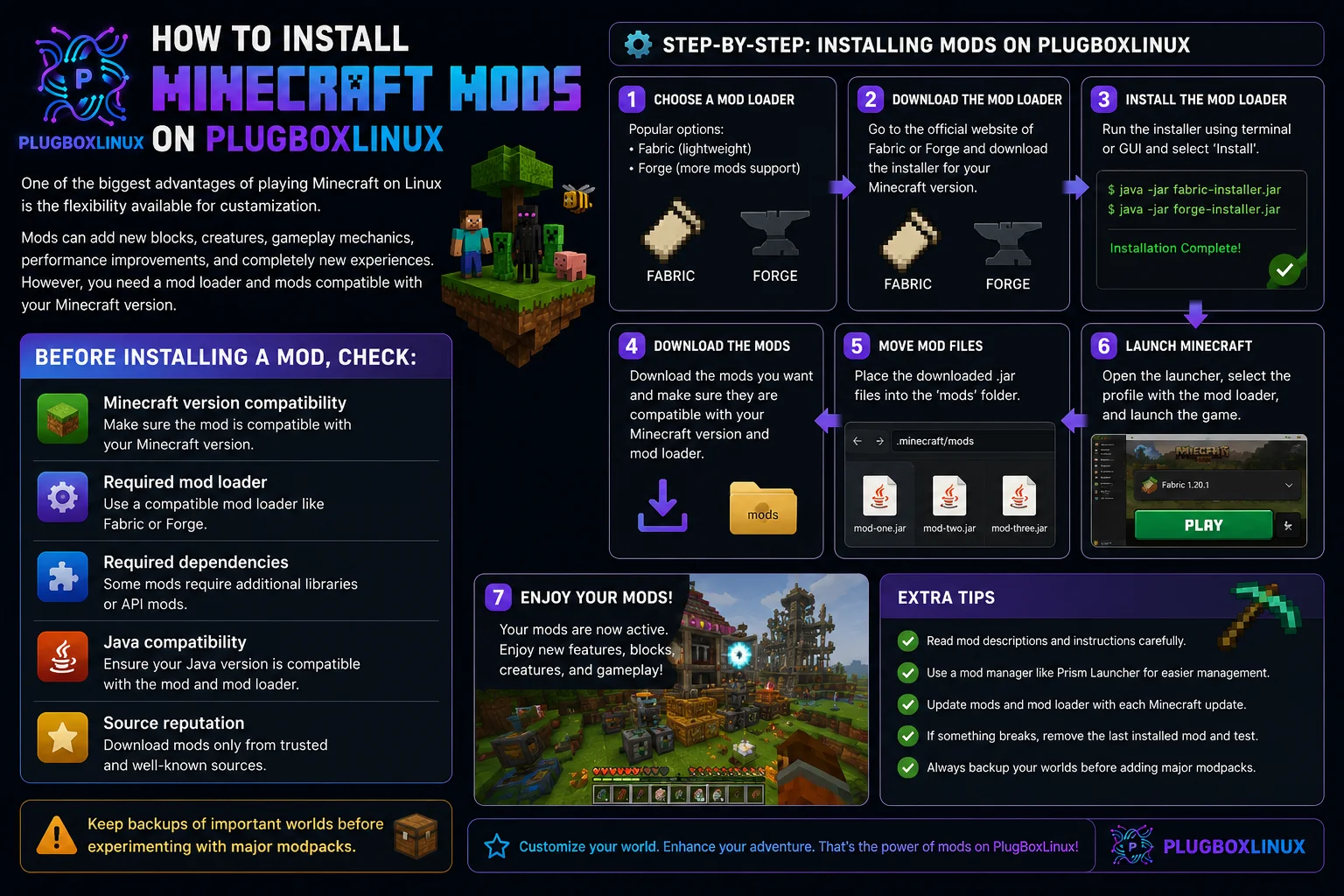
One of the biggest advantages of playing Minecraft on Linux is the flexibility available for customization.
Mods can add new blocks, creatures, gameplay mechanics, performance improvements, and completely new experiences. However, you need a mod loader and mods compatible with your Minecraft version.
Before installing a mod, check:
- Minecraft version compatibility
- Required mod loader
- Required dependencies
- Java compatibility
- Source reputation
Keep backups of important worlds before experimenting with major modpacks.
Installing Minecraft Shaders and Resource Packs
Shaders can significantly change Minecraft’s visual appearance by adding improved lighting, shadows, reflections, and other effects.
However, shaders can also increase GPU usage. If your game slows down after enabling them, reduce shader quality or disable advanced effects.
Resource packs are generally easier to run than demanding shaders because they mainly change textures and visual assets. Start with lightweight options if your computer has limited hardware.
Best Minecraft Settings for Better Performance
You do not always need powerful hardware to improve Minecraft performance. Adjusting a few settings can make the game run more smoothly.
Consider lowering:
- Render distance
- Simulation distance
- Graphics quality
- Entity distance
- Particles
- Shadow or shader quality
You can also close unnecessary background applications before launching the game.
For Minecraft PlugBoxLinux users, keeping graphics drivers updated and using a suitable Java runtime can also help avoid unnecessary performance issues.
How to Improve Minecraft FPS on PlugBoxLinux
Low FPS can have several causes, including insufficient hardware, excessive render distance, outdated drivers, or demanding mods.
Start by testing Minecraft without shaders or heavy mods. If performance improves, gradually enable your customizations to identify what is causing the slowdown.
You can also monitor CPU, GPU, and RAM usage while playing. This can help determine whether the problem is related to your hardware or game configuration.
Fixing Common Minecraft Issues on Linux
Linux Minecraft problems are often caused by incompatible Java versions, graphics drivers, permissions, or launcher configuration.
If Minecraft crashes, try these basic steps:
- Restart the launcher.
- Check the selected Minecraft version.
- Verify the Java runtime.
- Update your graphics drivers.
- Temporarily remove recently installed mods.
- Check available storage and RAM.
- Review launcher logs for useful error messages.
Making one change at a time makes troubleshooting much easier.
Minecraft Not Launching on PlugBoxLinux: What to Do
If Minecraft refuses to launch, start with the simplest possibilities.
Make sure your launcher is properly installed and that your account can sign in successfully. Next, check whether the selected Java version matches your Minecraft version’s requirements.
If you recently installed mods, try launching a clean, unmodified profile. A single incompatible mod can prevent the game from starting.
Graphics driver problems can also cause crashes or black screens, so it’s worth checking your GPU configuration.
How to Update Minecraft on PlugBoxLinux
Minecraft updates are normally handled through the launcher. Before updating, consider backing up important worlds, especially if you use mods.
Mods and mod loaders may take time to become compatible with a new Minecraft release. If you rely on a heavily modded setup, check compatibility before updating everything at once.
Is PlugBoxLinux Good for Minecraft Gaming?
For Linux users who enjoy customization and control, PlugBoxLinux can be an interesting environment for Minecraft. The overall experience depends on your hardware, Linux configuration, graphics drivers, and the type of Minecraft setup you use.
A simple vanilla installation should generally be easier to maintain than a heavily modded setup with high-resolution textures and demanding shaders.
Pros and Cons of Playing Minecraft on PlugBoxLinux
Pros
- Flexible system configuration
- Strong customization options
- Good environment for technical users
- Support for mods and custom configurations
- Useful control over system resources
Cons
- Initial setup may require extra configuration
- Driver issues can sometimes affect gaming
- Some third-party tools may require troubleshooting
- Mod compatibility can vary between versions
Final Thoughts
Running Minecraft on Linux can be rewarding for players who enjoy customization and greater control over their gaming environment. With the right launcher, Java configuration, graphics drivers, and performance settings, you can create a setup that works well for both casual and modded gameplay.
The key is to start with a simple installation, test the game, and then add modifications one at a time. This makes it much easier to identify and fix problems while keeping your Minecraft experience stable.
Frequently Asked Questions
Does Minecraft work on Linux?
Yes. Minecraft can run on Linux, particularly Java Edition, as long as your system meets the requirements and the launcher is configured correctly.
Can I use Minecraft mods on Linux?
Yes. Linux supports Minecraft mods, as long as you use compatible versions of Minecraft, the appropriate mod loader, and any required dependencies.
Can Minecraft run without shaders?
Absolutely. Shaders are optional and can be disabled if you want better performance or prefer the standard Minecraft graphics.
Why is Minecraft running slowly on Linux?
Slow performance can result from limited hardware, high render distance, demanding shaders, outdated graphics drivers, background applications, or resource-heavy mods.
Is Linux suitable for Minecraft beginners?
It can be. Beginners may need to spend some extra time learning basic Linux configuration, but once the game is set up, Minecraft can run normally like other supported applications.