
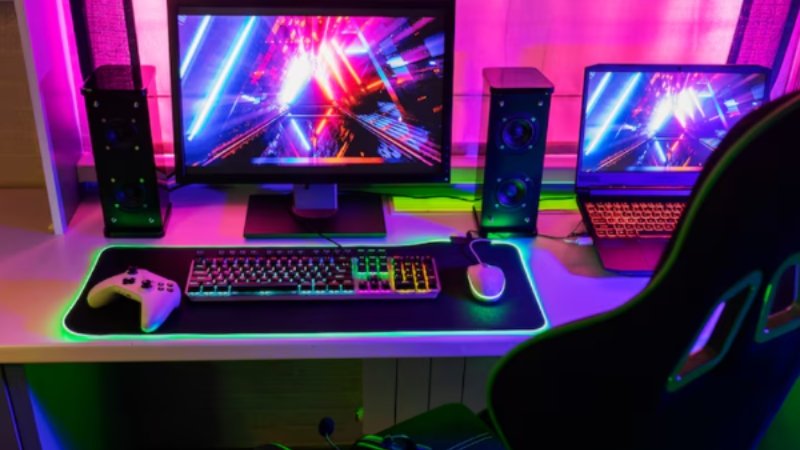
You have just set up your new gaming PC. The parts are in place, the screen is on, and your desk is ready for some fun. But hold on before you play your first game. A few key steps can help your PC run at its best. Many new users miss these tasks. As a result, they may not get the full speed or smooth gameplay that their PC can offer. From screen setup to heat checks, here are four things to do right.
1. Set Your Monitor’s Refresh Rate
Your new screen may have a high refresh rate, but your PC may not use it by default. For a custom gaming PC, this small step can make a big difference in how games look and feel. Remember, a 144Hz or 165Hz screen can show more frames per second than a 60Hz one. This makes fast moves look smoother. It can also help in games where quick aim and fast moves are the key.
To set it in Windows, you can right-click on your desktop and open the display settings. Then go to the Advanced Display Options and find the refresh rate tab. Here, you can pick the top rate that your screen can run.
2. Enable XMP or EXPO in the BIOS
Your RAM may be built to run at 3200MHz, 5600MHz, or even more. Yet your PC may use a lower speed at first. This is due to the RAM’s setup. To get the speed you paid for, you may need to turn on XMP or EXPO in the BIOS.
XMP is used on many Intel-based PCs and is made for AMD-based PCs. Both help your board use the RAM speed and timings set by the maker. To do this, you can reboot your PC and press the BIOS key. This is often Del or F2. Then, find the RAM or OC tab. Now, turn on the right XMP or EXPO mode, then save and exit. You should not pick a random speed by hand. Use the set mode made for your RAM kit. If the PC fails to boot, reset the BIOS and try a lower speed.
3. Update GPU Drivers and Windows
Old GPU drivers can cause low FPS, screen lag, or game bugs. So, you must update them. If you use an NVIDIA GPU, get the latest driver from its app or site. For AMD, use AMD’s Adrenalin app. After that, pick the right GPU model and OS when you get the file. Once the driver is set, open Windows Update, check for new files, and let them all load. Remember, some updates may need a full reboot to work.
4. Run a Quick Temperature Check
A PC can look fine on the desk but still have a heating issue. A loose fan wire, poor airflow, or a bad cooler fit can cause high heat. Therefore, you should use a tool such as HWiNFO to view CPU and GPU heat. Let the PC sit idle for a few minutes, and then run a game for 15 to 20 minutes to check the heat.